Automated reporting: How to reduce manual reporting across your business
- Last Updated : September 23, 2026
- 85 Views
- 7 Min Read
Key takeaways
- Manual reporting takes time, especially when data has to be collected from multiple apps and put together for every report.
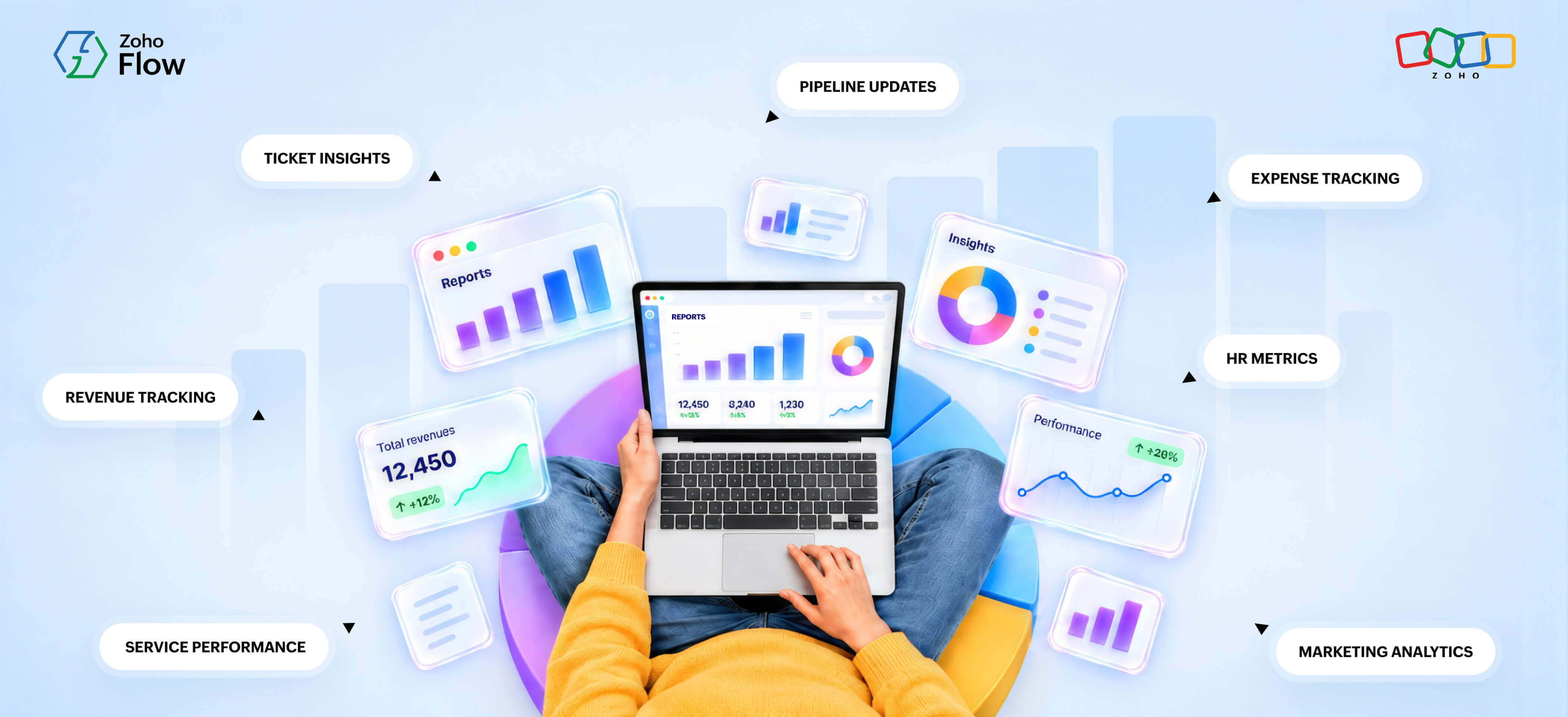
- Reporting can be automated across sales, support, finance, HR, marketing, subscription management, and other areas of your business.
- Zoho Flow lets you connect your business apps with reporting tools and automatically move data between them, keeping your reports current with less manual work.
As your business grows, there comes a point when you need to look at the numbers and understand where your business stands. How are your sales doing? Where is your money going? Are your teams meeting their targets? Reporting helps you answer these questions and see where your business stands.
At first, putting together these reports may be fairly simple. But as your business scales, so does the amount of data you need to work with. When that data is spread across different apps, manually collecting, updating, and moving it can take time and leave room for errors, duplicate entries, and delays.
This is where automation can help. But what does that actually mean for your business?
What is automated reporting?
Automated reporting uses a workflow automation tool to move data between your business apps automatically. When something happens in one app, like a deal closing, an expense being logged, or a ticket being resolved, the automation picks it up and sends it to your reporting tool.
You can also set it up the other way, where your reporting tool pushes data or triggers an action in another app. For example, when a revenue threshold is hit on your dashboard, an alert goes out to your team automatically.
The result is a reporting system that runs in the background, stays current, and doesn't depend on anyone remembering to update it.
To make this more concrete, here are some ways businesses are using Zoho Flow to handle reporting across different functions.
7 practical use cases for automating reports at your business
1. Service performance: Automate your app-monitoring reports
Status and activity emails from your apps carry useful performance data, but without a system in place, that data stays in your inbox and never makes it into a report.
With Zoho Flow's email trigger, every time an activity email arrives, the flow extracts the relevant data and logs it as a record in Zoho Creator. Over time, these records build into a live report inside Creator, giving you a consolidated view of how your apps are performing. Zoho Flow also sends a summary to a Zoho Cliq channel so your team stays updated without having to check the dashboard manually.
This is how one of our customers, Syncify, uses Zoho Flow to bring service alert data into Zoho Creator, giving its team a real-time view of issues across the services they manage.

Trigger: Email trigger
Action 1: Create record (Zoho Creator)
Action 2: Message in channel (Zoho Cliq)
2. Subscription revenue: Keep your revenue data current
For a subscription business, numbers like monthly and annual recurring revenue keep changing as new customers sign up. Instead of logging in to multiple tools, pulling numbers, and putting together a picture of how the business is growing, you can automate it.
As new subscriptions are activated in Zoho Billing, Zoho Flow sends the subscription data to Baremetrics, a subscription analytics tool, for reporting. Baremetrics uses this data to update your subscription revenue reports, giving you an up-to-date view of your revenue metrics. At the same time, a notification goes out to your subscription management team on Slack so they can follow up with the new customer right away.
3. Sales pipeline: Automate your pipeline reports
Sales managers need to know what's happening with their deals. Which ones have closed? Which ones haven't moved? Is the team on track to hit its targets? The data is usually there in the CRM, but turning it into a report takes work. Someone has to export it, clean it up, and share it with the team by hand.
With Zoho Flow, every time a deal is updated in Zoho CRM, the flow automatically picks up the details and passes them to Zia, Zoho's built-in AI utility. Zia summarizes the deal data, including the stage, value, and owner, into a concise pipeline update. That summary is then logged in Zoho Analytics to build a running report of your pipeline activity and sent to the sales manager on Zoho Cliq so they're always up to date.

Trigger: Updated deal (Zoho CRM)
Action 1: Summarize text (Zia Utility)
Action 2: Create rows (Zoho Analytics)
Action 3: Message sales manager (Zoho Cliq)
4. Expense: Track high-value expenses automatically
As expenses come in throughout the month, finance teams need a clear picture of where the money is going and which expenses need a closer look. Getting that view often means exporting the data, filtering through it, and generating reports manually.
Every new expense submitted in Zoho Expense can be automatically checked against a set amount. If it crosses that limit, Zoho Flow adds the expense to Zoho Analytics, building a clean report of high-value expenses that leadership can review at any time.
5. Support tickets: Log and report high-priority tickets
Support teams handle hundreds of tickets every day. A clear picture of what's coming in, how tickets are distributed, and which ones are high priority helps managers plan better and improve how support is delivered. Without an automated reporting process, getting that view means manually going through ticket data and compiling it into a report.
But with automation, every time a ticket gets created in Zoho Desk, Zia can automatically labels it based on the issue type. The classification updates a live widget in Geckoboard, a real-time dashboard tool, giving your support manager a real-time view of ticket activity across the team. At the same time, the flow checks if the ticket is high priority. If it is, the details are logged as a new row in Google Sheets, building a focused report of only the tickets that matter most.

Trigger: Ticket created (Zoho Desk)
Action 1: Label email (Zia Utilities)
Action 2: Update number widget (Geckoboard)
Condition: High Priority ?
Action 3: Create row (Google Sheets)
6. HR: Keep your employee reports up to date
HR teams handle multiple responsibilities: onboarding, offboarding, leave, training, and more. And in the middle of all this, they still need accurate reports on how things are progressing. Manually compiling that data across different tools takes time and leaves room for errors.
With Zoho Flow, employee updates from your HR apps can be automatically sent to Zoho Analytics for reporting. As new data comes in, reports are updated with metrics like headcount, new hires, attrition, attendance, and training progress. This keeps your HR data ready in reports whenever someone needs an update.
7. Marketing: Build a unified marketing report
Organizing marketing performance gets harder as you run more campaigns and work across more tools. Campaign results, lead data, and social media metrics all live in separate tools, and bringing them together into one report takes more time than it should.
With Zoho Flow, you can bring all of this into Zoho Analytics automatically. Every time a new subscriber is added in Zoho Campaigns, Flow logs it as a row in Zoho Analytics. When a new lead is created in Zoho CRM, that gets logged too. And when your brand is mentioned on X, Flow captures that as well. Over time, this gives your marketing team a single report that connects campaign reach, lead generation, and brand conversations without anyone having to pull the data manually.
Reporting shouldn't be something your team has to create from scratch every time. It can run on its own in the background with automation. If you're looking to take the manual work out of reporting, Zoho Flow can help. Connect over 1,000 business apps and build automated workflows without any coding. You can start with one and expand from there.
Sign up for Zoho Flow and start automating your reporting today.
Frequently asked questions
1. Do I need coding skills to set up automated reporting with Zoho Flow?
No. Zoho Flow is a no-code platform that lets you build workflows using a drag-and-drop interface. You can connect your apps and set up reporting flows without writing any code.
2. Can I connect third-party apps with Zoho Flow, or is it only for Zoho apps?
Zoho Flow works with both Zoho apps and third-party tools. You can connect apps like Slack, Microsoft Teams, Google Sheets, Geckoboard, Baremetrics, and more alongside your Zoho products.
3. How is automated reporting different from scheduled reports?
Scheduled reports run at a fixed time regardless of what's happening in your business. Automated reporting is event-driven. The report updates the moment something happens, like a deal closing or a ticket being created, so your data is always current.
4. Does Zoho Flow have a free trial?
Yes. Zoho Flow offers a 15-day free trial so you can explore the platform and build workflows before committing to a plan. No credit card is required to get started. You can check the full pricing details on the Zoho Flow pricing page.
5. Is my business data secure when it passes through Zoho Flow?
Yes. Zoho Flow runs on Zoho's enterprise-grade security infrastructure. Data in transit is encrypted using TLS, and data at rest is encrypted using AES-256. Zoho Flow is GDPR compliant and ISO 27001 certified, and Zoho doesn't sell your data to third parties. You can also set role-based access controls to manage who on your team can view or edit workflows.
 Gayathri Babu
Content writer for Zoho Flow. Passionate about creating engaging content that truly resonates with the readers.